Centre for Accessibility Services

Reviewing exam accommodation requests

Once exam accommodations have been added to a student’s accommodation plan and they have submitted a Semester Request for the current semester, they will have the option to submit an Exam Booking Request through Accommodate to write their exam with the CAS Exam Centre.

Please note that we encourage exam accommodations to be facilitated in the classroom where possible 

When a student makes an Exam Booking Request, faculty will receive an email asking them to log into Accommodate to provide exam details as soon as possible.
1

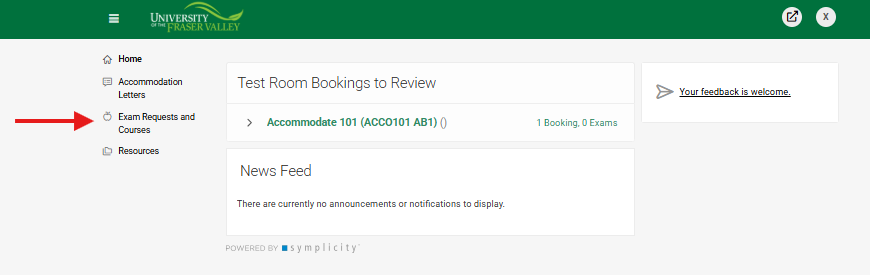
Select 'Exam requests and Courses':

After you log in to Accommodate, select ‘Exam Requests and Courses’ in the left navigation menu.

2

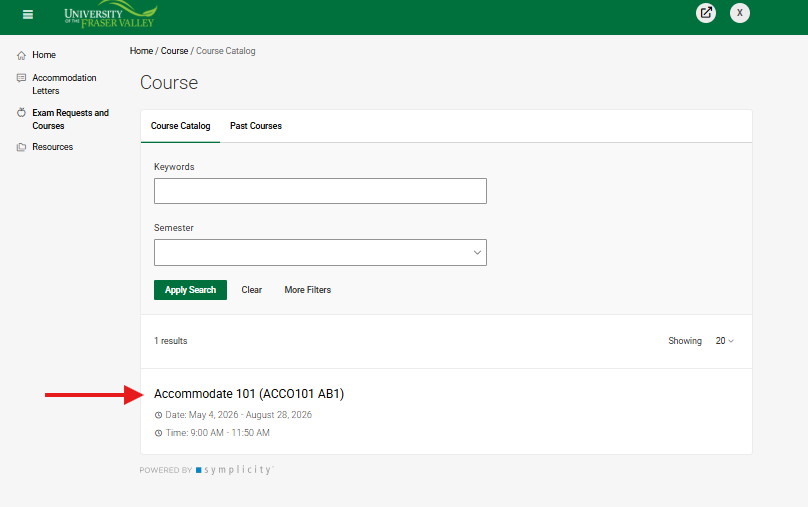
Select your course

The ‘Exam Requests and Courses’ page provides the option to search and select the specific course.

Screenshot showing courses and sections taught by a faculty member.

3

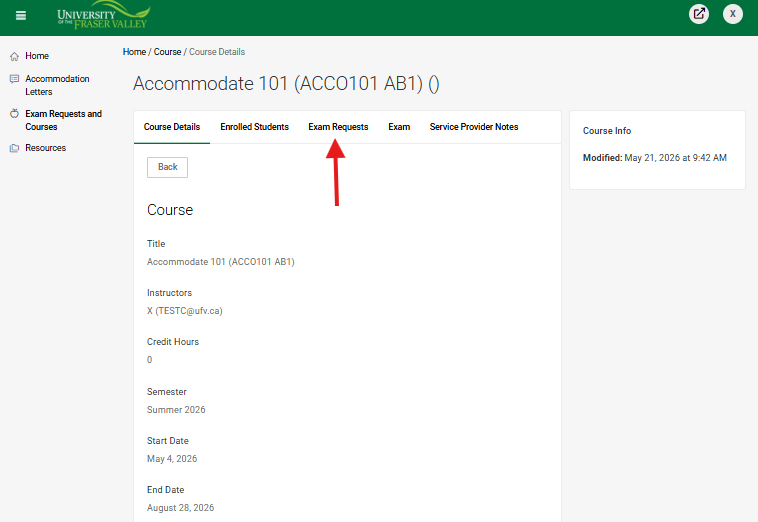
Select the 'Exam requests' option

After selecting the course, to view a new ‘Exam Booking Request’, select the ‘Exam Requests’ option.

Screenshot showing course details with additional content tabs available, including exam requests.

4

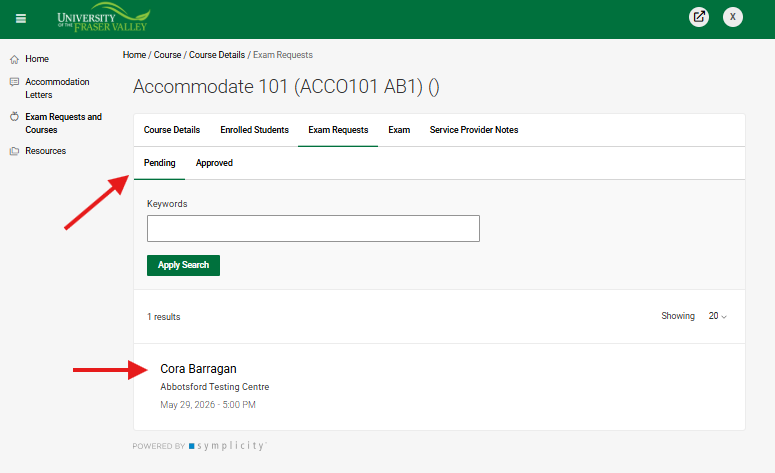
Select the student

Under “Pending,” select the student that has submitted the Exam Request.

A list of pending exam requests will become available, showing students names with their submitted requests.

5

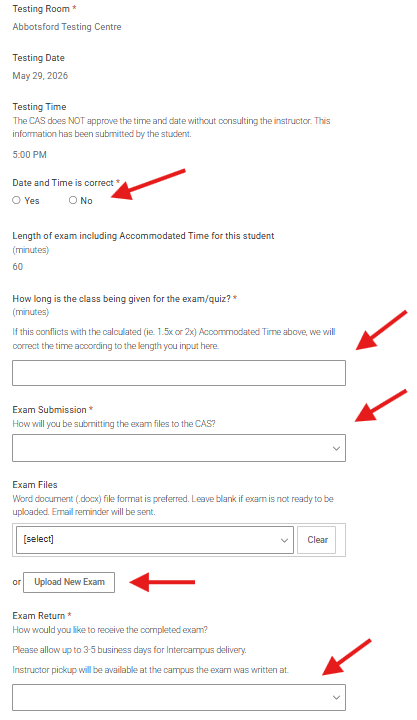
Enter exam details

To approve an exam:

  • Select the exam date.
  • Select the exam start time.
  • Specify the amount of time given to the class to complete the test (this does not include the accommodated time).
  • Select the “Exam Delivery Method” – How will the exam be provided to CAS?
  • There is an option to upload the exam file if this is the preferred method of delivery.

A screenshot that shows fields where faculty can input the testing date, time, exam length, and delivery method.

6

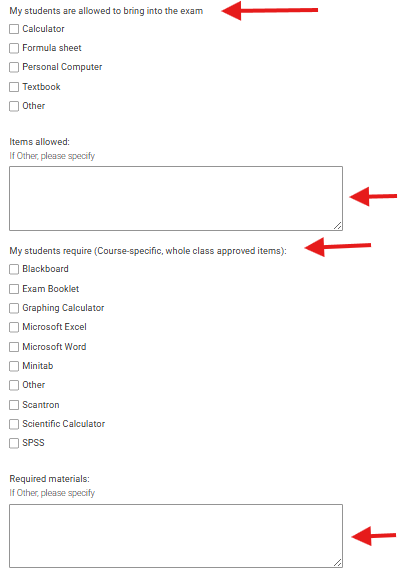
Select exam materials

Select all materials the student is permitted/required to bring into the exam.

Screenshot showing a series of checkboxes with exam material options (e.g. calculator, formula sheet)

Include any additional materials needed and any specific instructions.

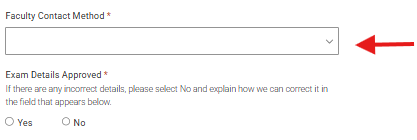
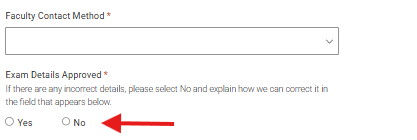
Select “Exam Request Approved” yes or no.

A screenshot showing fields for additional materials, notes, and a yes/no toggle for exam request approval.

7

Click submit

Make sure to click 'submit' to finalize your approval.

Click the 'submit' link to finalize your approval of the exam request.

8

Check your 'approved' list

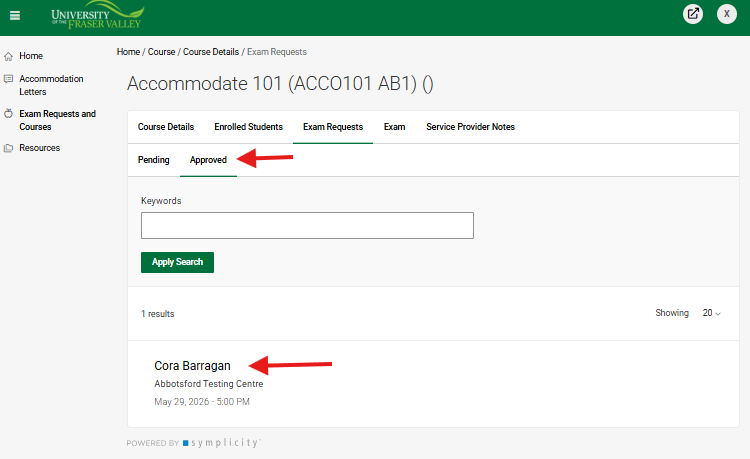
Once the exam has been approved by CAS, it will show under Approved.

Clicking the approved tab will provide a list of approved exam requests.

Contact Us